Grow the picture outwards and let the model fill in what was never there.
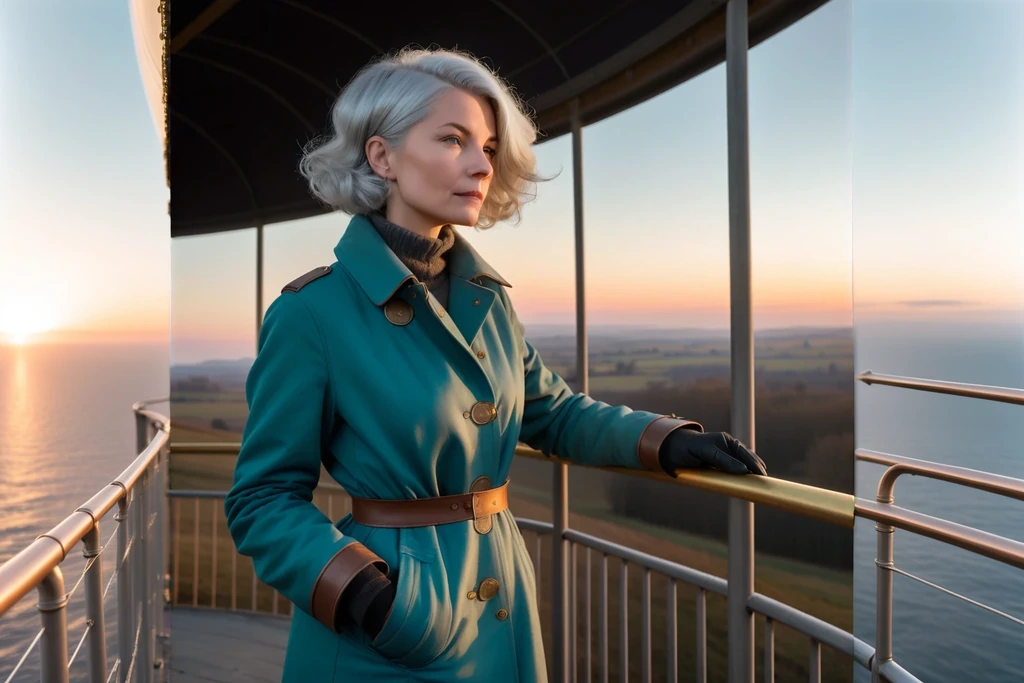
Turn on “Extend the canvas” in inpainting, set a larger than the picture you attached, and say where your picture should sit in the new frame. The panel puts it there and asks the model to paint everything around it.Underneath it is the same job as inpainting, with the empty border standing in for the brush, which is why it behaves the same way: the new ground is blank, so there is no strength to set and the whole area is invented.What you are really choosing is how much to invent. The examples push one picture out by a narrow border, by half its width again, and finally to twice its original size. The first two carry the scene straight out. The largest one no longer reads as an extension of the original: the model invents a new scene around it. That may be what you want, and it is a different result.Small steps work better than large ones. If you want a lot more canvas, go out in two or three passes, feeding each result back in. Asking for all of it at once works less well.Look along the join. The part you attached comes back exactly as it went in, so a seam can show where the two meet, especially at the larger extents.The same limits as inpainting apply: a Stable Diffusion 1.5, 2 or XL model, fewer workers than usual, and no .
Source image · Interactive explorer Extending the canvas
Extending the canvas 512 1536 × 1024
256Drag to compare1024
Half the picture again. The scene still holds together, and the new edges are inventing rather than repeating what is beside them.